
Step-by-Step Setup Guide: How to Use RoboDot Touch RTK GPS
By Antonio Liska •
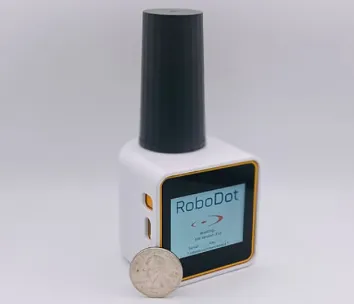
Precision matters, whether you’re mapping a construction site, surveying land for development, or collecting geospatial data for drone operations. And when accuracy down to the centimeter is non-negotiable, the RoboDot Touch RTK GPS delivers. But even the most advanced RTK GPS receivers won’t perform at their best without a proper setup.
If you’ve just unboxed your RoboDot Touch or are considering how to integrate it into your field workflow, this guide is for you. We’ll walk you through each step, from powering on the device to establishing a reliable RTK connection, so you can start collecting high-precision data with confidence.
What Is the RoboDot Touch RTK GPS System?
Before diving into setup, it helps to understand what makes the RoboDot Touch RTK GPS receiver stand out. It’s a compact, dual-band GNSS RTK base station and rover in one, capable of operating as either, depending on your needs. Supporting GPS, GLONASS, Galileo, and BeiDou constellations, it delivers centimeter-level accuracy through real-time kinematic (RTK) or post-processed kinematic (PPK) workflows.
Its built-in touchscreen, Wi-Fi, Bluetooth LE, serial outputs, and optional 900 MHz radio make it exceptionally flexible for drone surveying, construction staking, and commercial mapping, even in remote areas without cellular coverage.
How Do I Power on and Access the RoboDot Touch Interface?
Getting started is simple:
- Charge the unit using the included USB-C cable and wall adapter. The RoboDot Touch offers over 10 hours of runtime, so a full charge ensures you’re ready for a full day in the field.
- Power on by pressing the side button, once the touchscreen lights up and RoboDot emits a tone, the device is on.
- Access settings or workflows directly from the touch interface or via a web browser on your phone, tablet, or laptop by connecting to the RoboDot’s Wi-Fi network.
This dual-access approach, touchscreen plus web UI, gives you full control whether you’re boots-on-the-ground or managing from a vehicle.
How Do I Set Up the RoboDot Touch as a GNSS RTK Base Station?
Running your own GNSS RTK base station gives you complete control over correction data, ideal for jobsites without internet or where NTRIP services are unreliable. Here’s how to configure it:
- Mount the RoboDot Touch securely on a tripod using the standard 1/4-20 threaded mount.
- Power it on and ensure it has a clear view of the sky for optimal satellite acquisition.
- Open the touchscreen menu, base mode is the default, so no selection is needed unless you’ve changed it previously.
- Enter known coordinates via the web UI (if available), or let the device auto-average its position over 5–10 minutes for a precise base location.
- Confirm via the touchscreen home menu that the NTRIP Caster/VRS is enabled, it’s on by default. This allows rovers (drones, tablets, or other receivers) to connect wirelessly and receive RTK corrections in real time.
- Optionally activate the 900 MHz radio (if purchased) for long-range, offline communication with rovers, no internet needed.
Once active, your RoboDot Touch acts as a local correction source, broadcasting over Wi-Fi or radio depending on your setup.
Pro Tip: For best results, log base station observation data to the built-in 8GB memory. This supports PPK workflows later if RTK signals drop during flight.
How Do I Use the RoboDot Touch as an RTK GPS Rover?
In rover mode, the RoboDot Touch receives corrections from a base station (your own or an NTRIP service) and outputs high-accuracy position data. Here’s the setup:
- Switch to Rover Mode via the touchscreen menu.
- Connect to corrections:
- Via NTRIP over the internet: Connect the RoboDot to a mobile hotspot or Wi-Fi with internet access, then enter your NTRIP credentials (caster URL, port, mountpoint, username, password).
- Via local base: Connect directly to your RoboDot base station over Wi-Fi or the 900 MHz radio.
- Wait for “Fixed” RTK status, this indicates centimeter-level accuracy has been achieved.
- Output position data through your preferred method:
- Wi-Fi (TCP/UDP) for real-time streaming to apps
- Bluetooth LE for mobile devices
- Serial (via USB-C) for direct drone or controller integration
- All outputs deliver standard NMEA sentences compatible with most surveying and mapping software.
This flexibility makes the RoboDot Touch a true plug-and-play RTK GPS receiver for drones like Eclipse, DJI M300, M350, or custom UAVs running Pixhawk or ArduPilot.
Can I Use RoboDot Touch for PPK Workflows?
Yes, and it’s one of its standout features. While RTK gives real-time corrections, PPK (Post-Processed Kinematic) processes data after the fact, which is ideal when radio or internet links are unstable (common in forestry, mountains, or urban canyons).
To use PPK:
- Log raw GNSS observations on both the base (RoboDot Touch in Base Mode) and rover (on your drone or second RoboDot).
- After the mission, transfer the logs to your computer.
- Use the included RoboDot Windows Utility to process the data and generate corrected positions.
- Import results into your photogrammetry or GIS software (like Pix4D, DroneDeploy, or Agisoft Metashape Pro).
PPK ensures you never lose accuracy due to signal dropouts, making it a powerful backup or primary workflow for demanding environments.
What Accessories or Upgrades Should I Consider?
Your RoboDot Touch comes ready to go, but these enhancements can expand its utility:
- 900 MHz Radio Module: Enables direct, long-range communication between base and rover without internet. Can be added at purchase or later.
- High-Gain Antenna (optional): Improves signal reception in challenging environments.
- Portable Power Bank: Extends field runtime beyond the standard 10+ hours.
- Rugged Case: Protects your investment during transport and storage.
Remember: the radio module is only needed for direct device-to-device communication. If you’re using NTRIP over the internet, it’s not required.
Where Can I Find Official Setup Guides and Support?
Robota provides comprehensive, up-to-date documentation to help you get the most from your device:
- RoboDot Touch User & Application Guide: A combined surveying and mapping resources that covers all device functions, from touchscreen navigation and firmware updates to real-world integration in drone mapping, construction layout, and other field workflows, including step-by-step instructions for third-party software compatibility.
- Setup Videos & FAQs: Quick, practical video tutorials on the Robota YouTube channel for easy onboarding and common setup scenarios.
The team at Robota also encourages user feedback to continually improve these resources because your success in the field is their priority.
Ready to Achieve Centimeter Accuracy on Your Terms?
The RoboDot Touch isn’t just another RTK GPS receiver. It’s a complete, field-ready solution that adapts to your workflow, whether you’re streaming corrections over Wi-Fi, broadcasting via radio, or post-processing for maximum reliability. With dual-mode flexibility, multi-constellation support, and intuitive controls, it puts professional-grade precision within reach of surveyors, drone operators, and construction teams alike.
Don’t let setup complexity hold you back. With this step-by-step guide and Robota’s robust documentation, you’re fully equipped to deploy your RoboDot Touch with confidence.
Visit us today to order your RoboDot Touch RTK GPS system or reach out to our team for personalized setup advice. Precision starts here.
Put centimeter accuracy to work
See the RoboDot Touch RTK receiver or talk to us about your surveying and mapping workflow.